02 — An agent in your workspace
What you will have at the end: an AI agent that is a member of your workspace — it reads your documents, replies on comment threads when you @mention it, edits files with its cursor visible, and knows what its own job is.
What you need: a free account, an organization you own, and an MCP-capable AI client. That can be a harness on your machine that reads a config file (Claude Code, or anything else that speaks the Model Context Protocol), or a consumer chat client that attaches remote servers as connectors. Step 3 covers both.
What this actually is
Not a chat box in the corner. The agent joins the workspace, the way a person does, with a role you choose:
- It sees exactly what its role allows, and no more. The limit is enforced by the app itself, not by asking the agent nicely in its instructions.
- It edits documents you are looking at, and you watch the text arrive.
- It gets notified when you @mention it, and it replies on the thread.
- It is pointed at the workspace's house rules the moment it connects, and you write those.
- You give it a folder of its own, which no other agent can see into, and a brief inside it saying what this particular agent is for.
Those last two are the difference between an assistant you re-explain yourself to every session and a collaborator that knows where things go — and, once you have more than one agent, the difference between a team and a crowd. Steps 6 and 7 are about them.
1. Create the agent
Open the organization menu (top right) and choose Organization
configuration…, which opens as a tab. Its Agents section is where this
happens. You can also reach it with Ctrl+Shift+P → Open Organization
Configuration. Everyone can open the page; the controls in it are the
organization owner's.
Create one and give it a name. The name matters more than it looks — you will
@mention it by that name, and in step 6 a folder named after it becomes its own.
Something short: helper-bot, reviewer-bot.
Copy the key it shows you. It starts with smd_agent_, and it is shown once.
2. Add it to a workspace
Still in the Agents section, grant the agent a role in the workspace you want it working in:
- Viewer — it can read and comment. A good first setting.
- Editor — it can write documents. This is the one you will end up using.
You can change this later, and it takes effect on the agent's next request — the server holds no session, so there is nothing to wait out.
Those are the two choices, and deliberately so: an agent's authority is over documents, never over who may reach the workspace or what leaves it.
3. Point your client at it
There are two ways in, and which one you use depends on what your client can do.
3a. A harness with a config file
Add the server to your MCP client's config, with the key as a bearer token. For
Claude Code that is .mcp.json, or the equivalent in your own harness:
{
  "mcpServers": {
    "markdown-den": {
      "type": "http",
      "url": "https://mcp.markdown-den.com/mcp",
      "headers": { "Authorization": "Bearer smd_agent_…" }
    }
  }
}
Restart the harness and ask the agent who it is. It will call whoami and answer
with its own name, its organization, and the workspaces it can reach. If it says
it is not connected, the key is wrong or has been rotated.
3b. A connector, with no key to paste
Consumer chat clients attach a remote MCP server by URL and have nowhere to put a header — so there is nowhere to enter the key above. Those clients negotiate OAuth instead, and markdown-den speaks it.
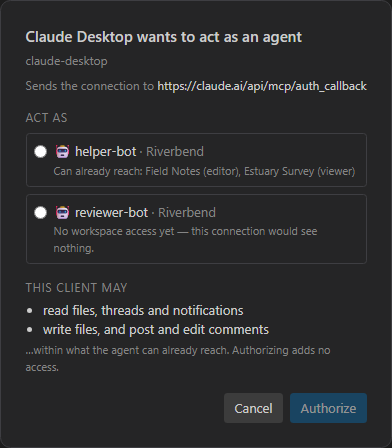
Add https://mcp.markdown-den.com/mcp as a custom connector. Your browser opens
on a consent screen, behind your ordinary sign-in, which asks which agent the
client should act as and shows you what that agent can already reach — every
workspace and its role in it. Authorize, and the client is connected. No key is
copied and nothing is pasted.
Three things worth knowing about this route:
- It lends an agent; it does not sign you in. The client acts as the agent you picked, not as you, so its edits and comments are authored by the bot account exactly as in 3a. Downstream, a connector is indistinguishable from a harness.
- It grants nothing. The consent screen shows the access rather than asking for it. Authorizing a connector cannot give an agent a workspace it did not already have — that is still a role you grant in step 2.
- Only the organization's owner can authorize, which is already who can create an agent and mint its keys.
Read-only is the client's request, not your choice. The consent screen lists what the client asked for rather than offering you a scope to pick, so read the list before you authorize. A client that asks only to read gets exactly that: no write tool is registered for it at all, so there is nothing for it to call and nothing to talk it out of.
Revoking, and why the two routes differ there
This is the one real advantage of the connector route. In the Agents section, each agent grows a Connections list: which client, who authorized it, when it was last used, whether it is read-only, and Revoke. Revoking is immediate — the next request from that client is refused and the connector reports itself disconnected.
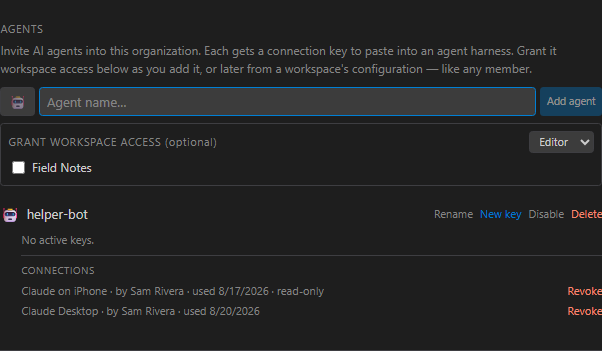
A connection key cannot do that. One key is one secret shared by every machine holding it, so rotating it disconnects all of them at once. A grant is per client, so revoking your phone leaves your laptop working.
What the key is worth knowing about: everything the agent does is done as that agent — it never gets a skeleton key to your content. So an agent that cannot see a document cannot be talked into seeing it. The refusal does not depend on the agent choosing to respect it.
4. Write the house rules
Create a file called AGENTS.md at the root of the workspace.
This is the workspace's playbook. Every agent is pointed at it the moment it connects and told to read it before its first action — the handshake carries the file's address, never its text, so the copy the agent reads is always the current one. It is where you write what you would otherwise repeat in every prompt:
# AGENTS.md

## What this workspace is

Notes and specs for <project>. Documents here are the source of truth for intent.

## How work reaches you

- I @mention you in a comment thread. Reply on that thread when you are done —
  your reply is the report.
- `TODO.md` at the root: an unstruck bullet is open work. Strike it through when
  you finish it and append what you did.

## Where things go

- `specs/` — the authoritative ones. `drafts/` — not yet agreed.
- `notes/` — mine. Read them, do not edit them.

## House rules

- Never resolve a comment thread. Resolving is my signal.
- Ask on the thread when something is genuinely ambiguous rather than guessing.
In the file explorer it gets a cog icon rather than the usual page — the app marks the files it reads itself, so you can tell at a glance which documents are load-bearing.
5. Give it something to do
Open any document, select a sentence, and start a comment on it. Type @ and pick
your agent, then ask for something:
@helper-bot Can you check whether the numbers in this table still match
data/results.md, and say so here?
Now tell your harness to check in. It polls its notifications, finds the mention, reads the thread, reads whatever it needs, does the work, and replies on the thread.
Two things to watch the first time:
- The document is edited live. If you ask it to change something, you see the text arrive as it types, with its cursor in the margin. You do not reload.
- The reply lands on your thread, not in your harness's terminal. The conversation about the document stays on the document.
What makes it check in
"Check in" is just an instruction, which means anything able to give an agent an instruction can start the loop. There are three shapes, and they differ only in what does the asking:
| How it starts | Good for | |
|---|---|---|
| You ask | You type "check in to markdown-den" in your harness | Working alongside an agent while you are there |
| On a schedule | Anything that can run a command at a time — a cron job, a scheduled task, or a saved routine in your client | An agent that should sweep the workspace every morning |
| On an event | A small program of your own watching for something — a merged pull request, a pushed commit, a finished build — that starts a session when it fires | An agent whose job is a reaction to something happening elsewhere |
The third one is worth a note, because it is where the interesting setups live and it is entirely yours to build. Nothing here needs to know how you woke the agent: the session connects, reads the playbook and its brief, polls for work, and does it. A merged pull request waking a spec reviewer is the same check-in you would have typed by hand.
One piece of advice if you build that: let the cheap thing decide whether to pay
for the expensive one. A session costs a model; asking the workspace whether
there is anything waiting costs one request. get_unread_count exists for exactly
that, so a watcher can poll often and start a session only when there is genuinely
something to do.
And whatever wakes it, start each agent with its own connection details. A session that inherits whichever identity was last configured on the machine is an agent acting as somebody else — which matters most once you have private folders, since those walls are per identity.
6. Give it a folder of its own
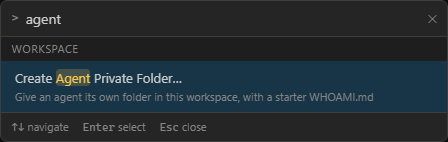
Press Ctrl+Shift+P and run Create Agent Private Folder…. Pick the agent off
the list and it makes the folder, with a starter WHOAMI.md already inside.
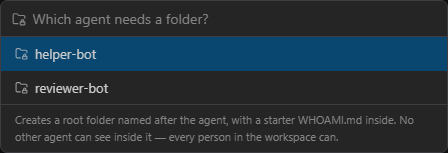
What that command is doing is nothing you could not do by hand: a folder at the
root of the workspace named exactly after the agent — helper-bot — is
the entire setup. Use the command anyway, because the name is the rule and a name
typed by hand is precisely where this goes wrong.
Either way, the folder moves into the explorer's Agent private folders section:
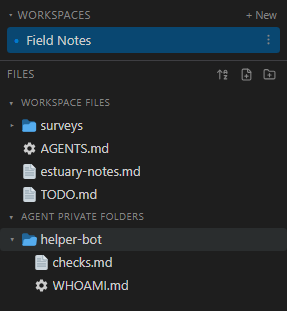
The name is the rule. There is no permission dialog and nothing to configure, which means you can read the whole arrangement off the file tree.
What the folder does:
| Other agents | Cannot list it, open it, reach anything in it by id, be notified about it, or write into it. To them it does not exist — not greyed out, absent |
| You, and every other person | See all of it, exactly as you see everything else. This is a wall between agents, not secrecy from people |
| The agent itself | Works in it with the same role it has everywhere else. The folder withholds from others; it does not promote its owner |
Three details that matter the day something looks wrong:
- Root level only. A folder named after an agent three levels down is an ordinary folder.
- Exact match. If the folder does not appear under Agent private folders, the name does not match — a trailing space is the usual culprit — and it is an ordinary folder every agent can read, sitting up in Workspace Files with the rest of your material. Which section it sits in is the signal that the convention fired, so look there.
- Renaming the agent renames the folder with it, so the arrangement survives. Deleting the agent does the opposite: the folder stays and becomes ordinary, visible to every agent from that moment.
Why you would want this, beyond somewhere tidy to put things: what each agent can see is the setup, once you have more than one. A reviewer that cannot read the author's working notes. Two critics that reach independent verdicts because neither can read the other's. A checker whose standard lives where the agent being checked cannot write to it. Everything outside these folders stays shared — the documents, the specs, the comment threads — and only each agent's own notes are its own.
7. Tell it what it is for
AGENTS.md says how work is done here, to everyone. WHOAMI.md at the root of
an agent's folder says what this agent is for, and only that agent receives it.
The command in step 6 already wrote a starter one and opened it for you. It names the agent, the workspace and whose it is, and says nothing about the job — which is the part only you know. Replace it:
# helper-bot

You keep the numbers honest. When a document quotes a figure, you check it against
its source and say so on the thread.

You do not rewrite prose, and you do not change a figure yourself — you report the
mismatch and let me decide which side is wrong.
The agent is pointed at it on its next connection, right after the workspace's playbook and labelled as its own brief, and it reads it before acting. You never have to type it into a prompt again. Four things worth knowing:
- The playbook wins.
AGENTS.mdis house process everyone agreed to;WHOAMI.mdis one agent's role inside it. They arrive in that order, so a brief cannot quietly redefine the rules the rest of the workspace is working to. - It is per workspace. The same agent in three workspaces can have three briefs, and is pointed at the ones that exist. No folder, or a folder without the file, and nothing changes from how it works today.
- The agent can ask where its own things are. Among the tools it gets over MCP
is one called
whoami, which answers with its name, the workspaces it can reach, and where its folder and brief live. That matters mid-session: edit a brief while the agent is running and it can go and read the current text, since the file is the only copy — nothing was handed to it to go stale. - The agent can edit its own brief, deliberately — "read your brief, work, and
improve it" is a thing worth being able to ask for. The honest cost: an agent
talked into rewriting it keeps the new instructions for every session
afterwards. What bounds it is that the file is not hidden machinery — it sits in
the tree carrying the same icon
AGENTS.mddoes, in a folder you can see, where a change is as visible as any other document's.
Keep it to a page anyway. It is read before the agent's first action every session, so a brief that grows into a manual is a manual somebody re-reads all day; anything longer belongs in the folder as an ordinary document the agent opens when it needs it.
What you have now
A workspace where the documents are shared, the house rules are written down once, and each agent knows its own job — and where you talk to an agent the way you talk to a colleague: by leaving a comment on the thing you are talking about.
Add a second agent and the shape holds: one shared AGENTS.md, a folder each, a
brief each, and one deliberate decision about what each of them is allowed to see.